Activity Log
The Activity Log is a powerful security and auditing tool that provides a detailed, chronological record of actions performed on key business objects within the system. It is designed to give you a clear understanding of data workflows, enhance security by tracking user activity, and simplify troubleshooting.
By tracking who did what and when, you can maintain a complete and immutable audit trail for compliance, operational management, and internal controls.
Key Use Cases and Benefits
The Activity Log is more than just a record of events; it’s a critical tool for maintaining data integrity and security. Here are some practical ways you can use it:
- Accelerate Troubleshooting: When a customer reports an unexpected change to their subscription or an invoice appears incorrect, the Activity Log is your first place to look. You can filter the log by the specific Customer or Subscription ID to see a full history of changes, pinpointing exactly who made the change, what was altered, and when.
- Strengthen Security and Compliance: For financial audits (like SOX compliance), you must demonstrate control over who can modify sensitive information. The Activity Log provides an immutable record of all changes to critical objects like Products, Plans, and Invoices. You can easily export this data to prove that your internal controls are working effectively.
- Monitor User Activity: Keep an eye on actions performed by specific users, especially those with high-level permissions. This helps ensure that all actions are authorized and aligns with company policies.
Scope of the Activity Log
The Activity Log is designed to be comprehensive, but it’s important to understand what is and isn’t tracked.
What is Logged?
The log captures significant business events, primarily focusing on Create, Read, Update, and Delete (CRUD) actions for key business objects that you configure. This includes:
- Changes made by users through the GUI.
- Changes made via API calls.
- Significant system events (e.g., plan transitions).
What is Not Logged?
The Activity Log does not track:
- Every single API call, especially those that only read data without making changes (unless
Readis explicitly configured for tracking). - Internal system processes that do not directly relate to a change in a business object.
Configuring the Activity Log
You have full control over which actions are tracked for specific business objects. This allows you to focus on logging the most critical data for your business needs. The configuration is managed in the Business Configuration section.
How to Add a New Log Configuration
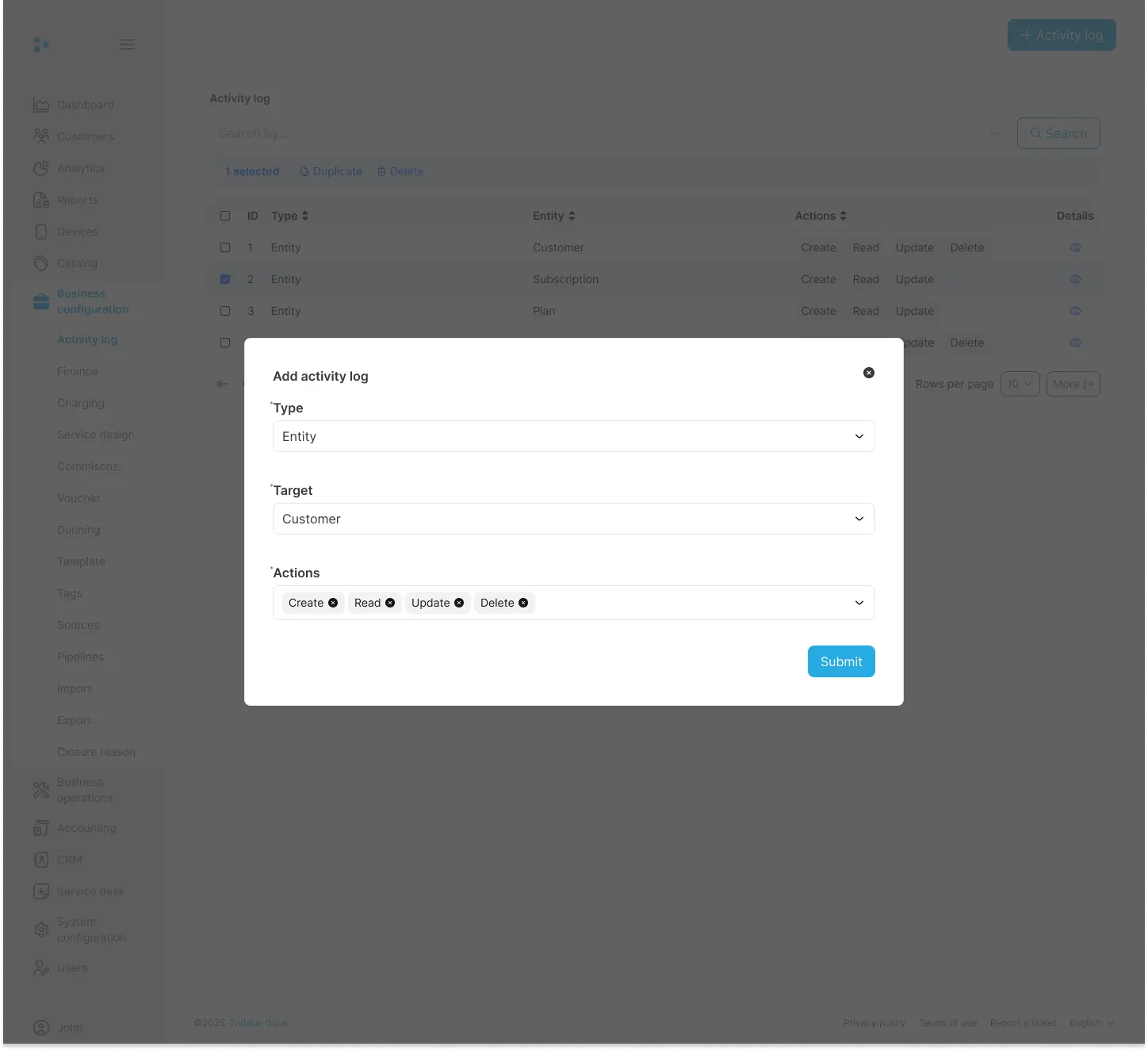
Navigate to Business Configuration > Activity log from the main menu.
Click the + Activity log button in the top-right corner.
In the Add activity log dialog:
- Type: Select the category of the object. In most cases, this will be
Entity. - Target: Choose the specific business object to monitor (e.g.,
Customer,Subscription,Plan). - Actions: Select the actions you want to log (
Create,Read,Update,Delete).
- Type: Select the category of the object. In most cases, this will be
Click Submit to save the configuration. The system will immediately begin logging the actions you specified.
Best Practices for Configuration
- Be Specific: Avoid logging everything. Focus on the objects and actions that are most critical for your security, compliance, and operational needs. Logging
UpdateandDeleteactions on financial objects is a great starting point. - Avoid Excessive Read Logging: Tracking
Readactions can generate a very high volume of data and may slow down system performance. Only enable this if you have a specific security requirement to monitor who is viewing sensitive data. - Regularly Review: Periodically review your log configurations to ensure they are still aligned with your business needs.
Viewing and Investigating Logs
Once configured, the system generates log entries that you can view, filter, and export.
How to View and Filter Logs
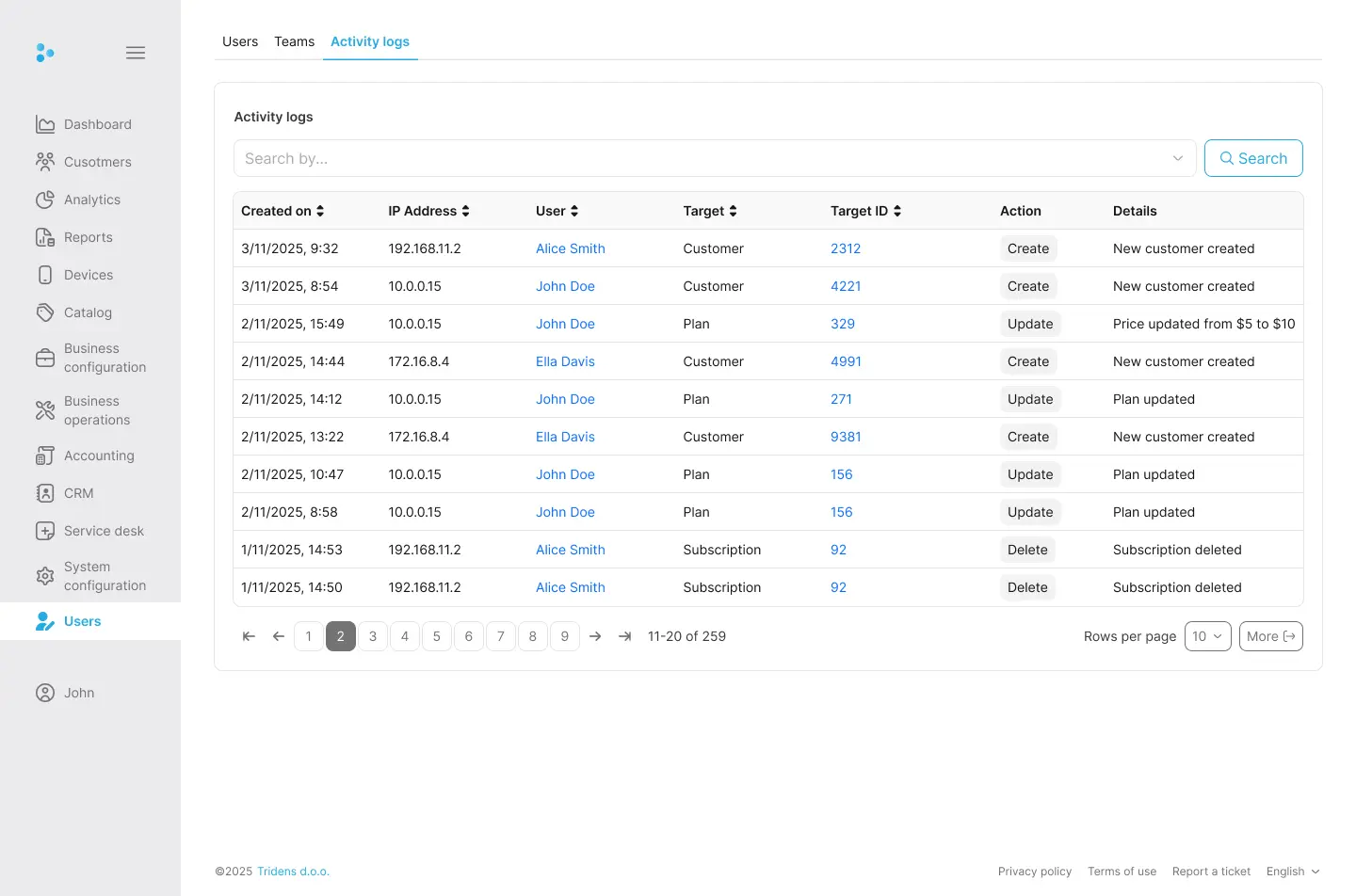
- Navigate to the log viewer screen (e.g., Users > Activity Logs).
- You will see a list of all captured events, sorted by date.
- Use the powerful filtering options to investigate specific events:
- Date Range: Narrow your search to a specific time period.
- Target Object and ID: Filter for a specific object (e.g.,
Customer) and even a specific instance (e.g., Customer ID). - User: See all actions performed by a specific user.
- Action Type: Isolate all
CreateorDeleteactions.
Understanding the Log Data
Each log entry contains detailed information to help you understand the event:
| Column | Description |
|---|---|
Created on | The exact date and time the action occurred. |
IP Address | The IP Address of user who performed the action. |
User | The user who performed the action. This may show “System” for automated processes. |
Target | The type of business object that was affected (e.g., Subscription). |
Target ID | The unique identifier of the specific object that was changed. |
Action | The action performed (CREATE, UPDATE, DELETE). |
Details | A human-readable summary of the change. For UPDATE actions, this will show the old and new values for the fields that were modified. |
Exporting Log Data
You can export your filtered log view for offline analysis, archival, or audit requests. Click the More button to download the data, typically in CSV format, which can be opened in any spreadsheet application.
Permissions and Data Retention
- Permissions: Access to configure and view the Activity Log is controlled by user permissions. Typically, only administrative users have the ability to change log configurations, while other users may have view-only access.
- Data Retention: Activity Log data is retained for a specific period to comply with audit and security standards. Please refer to your service agreement for the exact data retention policy.


