Charging Session Malfunctions
Topics in this document:
- Introduction
- 1. Session charging, but energy not progressing on Tridens
- 2. Session charging, but session shows 0 kW or 0 A on Tridens
- 3. No customer assigned on session
- 4. False time tracking
- 5. Faulted connector
- 6. Suspended EV/EVSE
- 7. Rating failed
- 8. Billing failed
- 9. Session did not start
- 10. Obsolete session, charger stops responding
- 11. Inadequate session
Introduction
This document describes scenarios of frequent EV charging session malfunctions with solution instructions and preventive measures.
1. Session charging, but energy not progressing on Tridens
Session charging at physical charger. Actual energy transferred >0 kWh, but on Tridens EV Charge web/mobile it shows 0 kWh or is stuck at some point above 0 kWh. This is usually the consequence of connector’s power limit being set too low on Tridens EV Charge dashboard, which causes the session energy validation rejections, as described in Energy Report Validation. Alternative issue might be that charging station is not reporting any energy consumption.
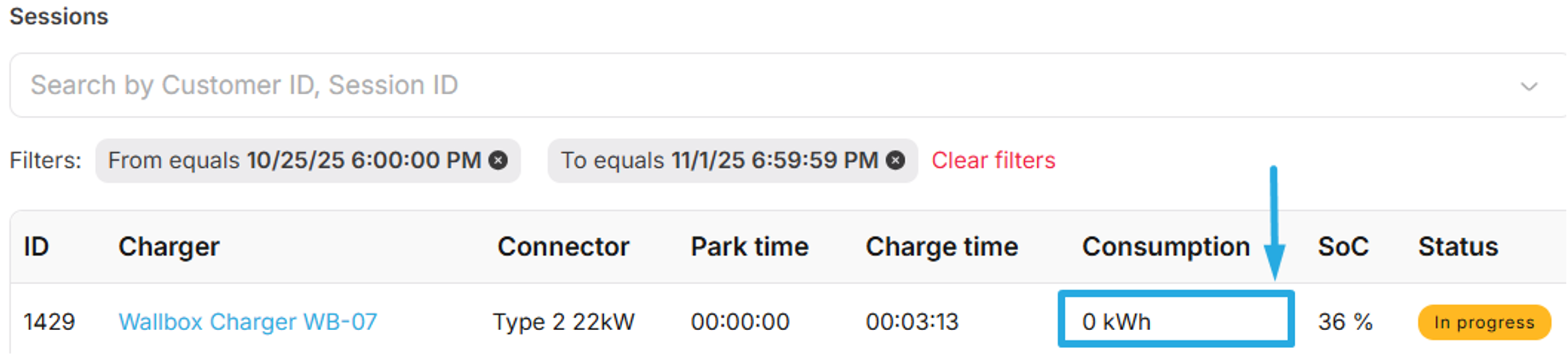
Figure 1: Session’s energy consumption not progressing on Tridens dashboard web/mobile.
Table 1: Solution & preventive measures of scenario 1.
| Topic | Description |
|---|---|
| Connector’s power capacity configuration on Tridens | Adjust the connector’s power (W) capacity on Tridens EV Charge dashboard to reflect an actual power capacity of the connector. Provide the power value in unit of watts (W). This shall adjust the active session’s energy, once the next session meter values are reported. Future sessions shall contain the proper energy consumption. Session Integrations - Energy Report Validation |
| Enable reporting of energy consumption on station | Enable the reporting of energy (energy active import) on the physical station’s configuration. Adjust physical station’s configuration by using Tridens EV Charge dashboard Station - Actions - Configuration - Meterings. Enable Energy.Active.Import.Register in Measurands. Future sessions shall then contain energy consumption reports. |
| Enable meter values reporting interval on station | Enable the reporting interval for session-related meter values on the physical charging station. Adjust physical station’s configuration by using Tridens EV Charge dashboard Station - Actions - Configuration - Meterings and adjusting Meter Value Sample Interval. Interval is expected to be between 10-60 seconds. Session Integrations - Meter Values Reporting |
2. Session charging, but session shows 0 kW or 0 A on Tridens
EV session charging at physical charger and actual energy is being transferred. Energy is >0 kWh, but power shows 0 kW or current 0 A on Tridens EV Charge web/mobile. This is usually the consequence of insufficient charger configuration in the scope of meter values reporting.

Figure 2: Session’s latest power and amperage missing on Tridens dashboard web/mobile.
Table 2: Solution & preventive measures of scenario 2.
| Topic | Description |
|---|---|
| Enable reporting of energy consumption on station | Enable the reporting of power and current on the physical charging station’s configuration. Adjust physical station’s configuration by using Tridens EV Charge dashboard Station - Actions - Configuration - Meterings. Enable Power.Active.Import and Current.Import in Measurands. Future sessions shall then contain power and current reports, as long as the charger supports reporting these. Session Integrations - Meter Values Reporting |
| Enable meter values reporting interval on station | Enable the reporting interval for session-related meter values on the physical charging station. Adjust physical station’s configuration by using Tridens EV Charge dashboard Station - Actions - Configuration - Meterings and adjusting Meter Value Sample Interval. Interval is expected to be between 10-60 seconds. Session Integrations - Meter Values Reporting |
3. No customer assigned on session
Session has no customer assigned, but charger is not publicly open.

Figure 3: No customer assigned on Tridens session.
Table 3: Solution & preventive measures of scenario 3.
| Topic | Description |
|---|---|
| Session timeout | Such session state can be a consequence of non-proper configuration of connection timeout & session expiration settings. Adjust based on Session Start Timeout and Idle Session Settings. To avoid fraudulent usage, we suggest using preventive measures by configuring the charger’s timeout period in which the session is expected to start. It covers the time available to start the session, since the acceptance of remote start request or driver authorization at the spot. Remote session start and authorization timeout on charger side represents the pending period to start the session upon the acceptance, after which session start confirmation is expected from the charger. If this time is breached, the charger should prevent any session from starting without the next session authorization acceptance, whether by mobile remote request or authorization at the charger. Example: The EV driver plugs the charger’s connector to the vehicle. Then the driver presses the session start request button on the mobile application, and at this point, session is ready. Ready session expiration time of 30 seconds starts ticking. If it reaches 30 seconds and the session has not started yet, then the session gets closed on the central system side and is not being tracked anymore. Charger needs to discard this session as well by using the compatible timeout period, which is advised to be shorter than the one of the central systems due to the time elapsed for the commands exchange. Session timeout section is related to ready-session-expiration settings of the central system, as it closes inactive sessions based on the expiration settings and idle job configuration. Make sure to use the consistent ready-session-expiration time on the central system, so it works aligned with the charger. |
| Authorization caches | Disable charging station’s local authorization caches. Adjust physical station’s configuration in Stations - Actions - Configuration - Authorization and invalidate/disable authorization caches. Session Integrations - Driver Authorization |
| Authorization lists | Disable charging station’s local authorization lists. Adjust physical station’s configuration in Stations - Actions - Configuration - Authorization and disable, erase or update authorization lists. Session Integrations - Driver Authorization |
4. False time tracking
Session charging most of the time (has high energy consumption), but parking/fault time is tracked instead. This indicates false connector status reporting.

Figure 4: Tridens session has inconsistent times.
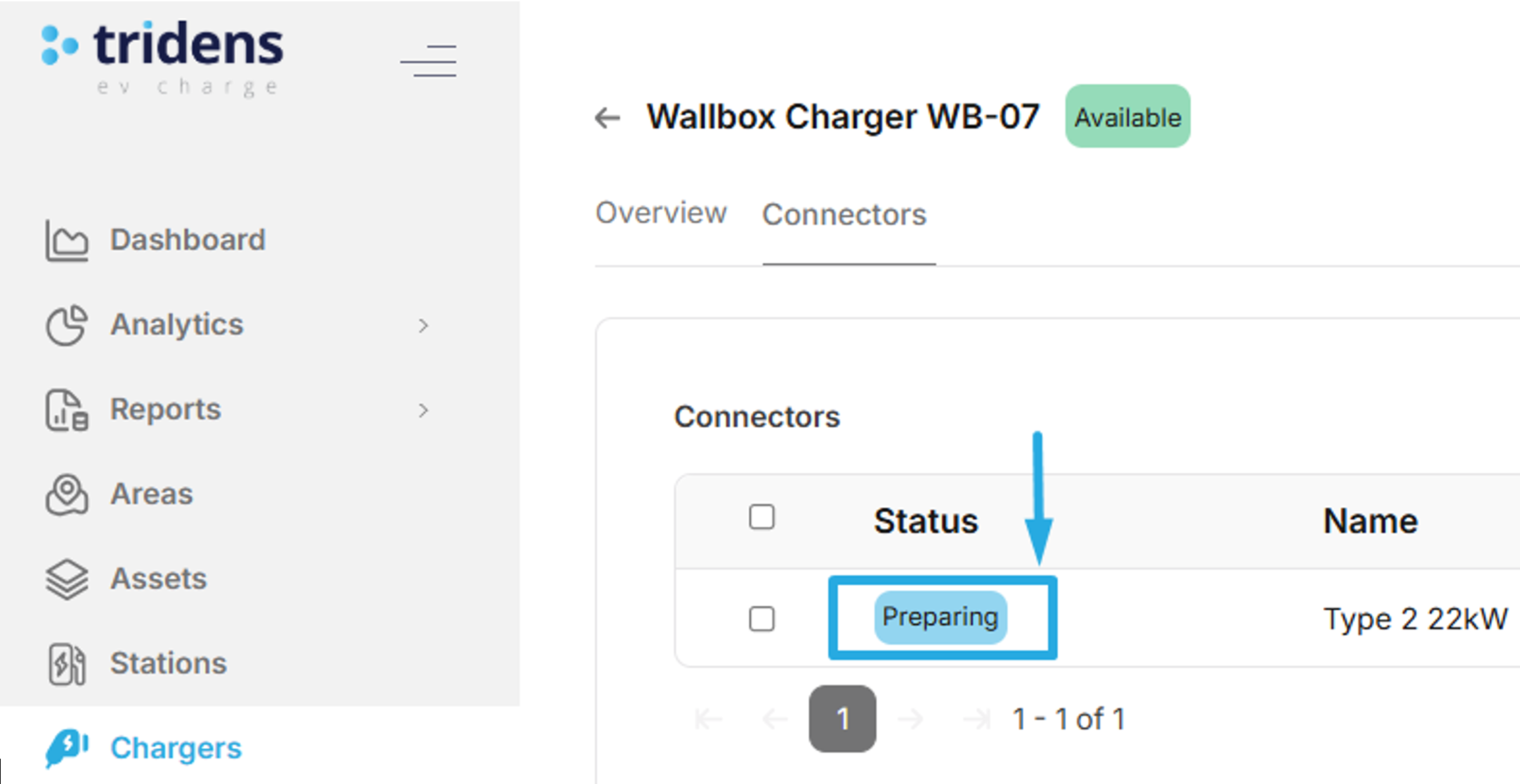
Figure 5: Connector has non-proper status on Tridens web dashboard.
Table 4: Solution & preventive measures of scenario 4.
| Topic | Description |
|---|---|
| Investigate OCPP logs | Investigate OCPP communication of the charging station in Tridens EV Charge dashboard under Stations - View Logs - OCPP. Focus on latest reported connector statuses from the charger in StatusNotification. The condition may be a result of false connector status reporting or invalid timestamp included in the report. OCPP communication view: Stations - Logs - Logged OCPP Communication Session duration scopes (reservation, charging, parking, fault): Sessions - Duration Scopes |
| Use charging station’s latest firmware | Ensure using the charging station manufacturer’s latest stable firmware, which may already provide a correction. Otherwise, please contact the manufacturer about the connector status reporting issue and provide them the OCPP logs excerpt. Tridens EV Charge Operations - Stations - Firmware |
5. Faulted connector
Session starts charging & charges load, then connector switches to faulted (hardware malfunction) and shows OCPP logs for investigation.
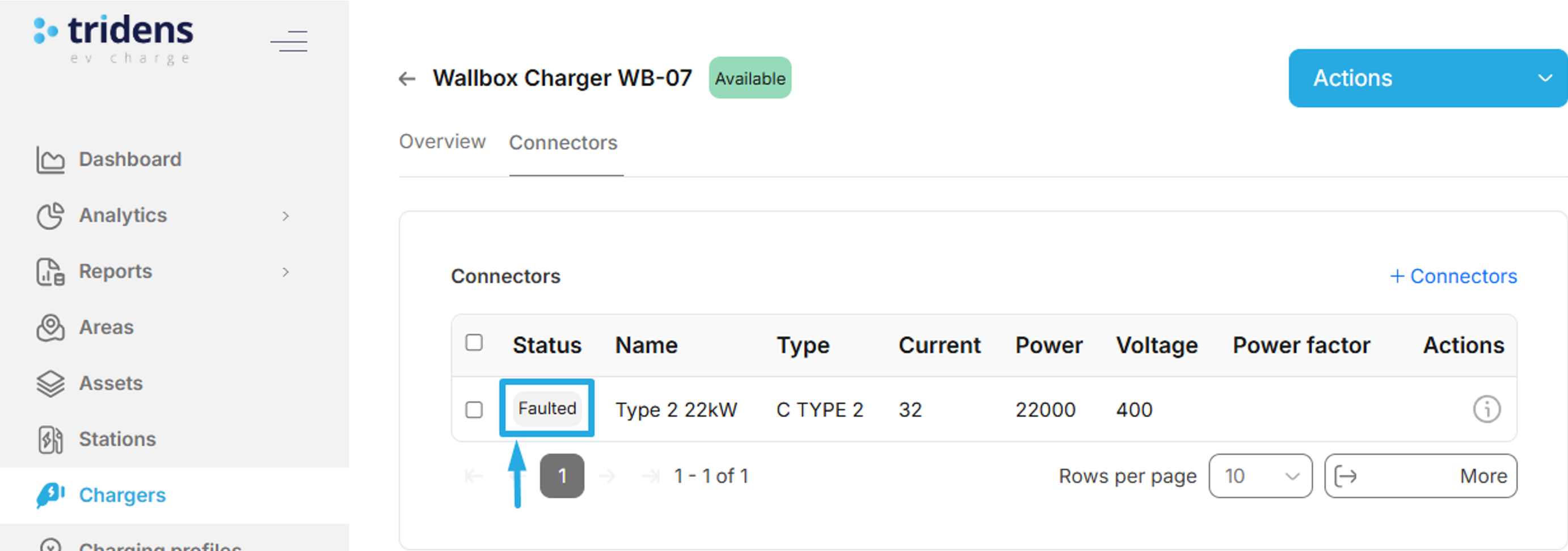
Figure 6: Connector has faulted status on Tridens web dashboard.

Figure 7: Tridens session contains fault time.
Table 5: Solution & preventive measures of scenario 5.
| Topic | Description |
|---|---|
| Investigate OCPP logs | Investigate OCPP communication of the charging station in Tridens EV Charge dashboard under Stations - View Logs - OCPP. Focus on the latest StatusNotification reports from the charger and find error logs. Vendor error codes may indicate a specific error that requires a technician’s action. OCPP communication view: Stations - Logs - Logged OCPP Communication Session duration scopes (reservation, charging, parking, fault): Sessions - Duration Scopes |
| Use charging station’s latest firmware | Ensure using the charging station manufacturer’s latest stable firmware, which may already provide a correction. Otherwise, please contact the manufacturer about the connector status reporting issue and provide them the OCPP logs excerpt. Tridens EV Charge Operations - Stations - Firmware |
| Notification on faulted connector | Use notifications to notify the charging infrastructure operator about the malfunction. Notification actions of interest: • Faulted connectors • Session with faulted time To configure notifications of different publishing types, follow instructions: System Configuration - Notifications More notification guidelines for operators are defined in: Integrations - Notifications Guidelines |
6. Suspended EV/EVSE
Session started charging & charged some load, then connector was switched to suspended EV (charger offering energy, but EV not taking it) or suspended EVSE (charger not offering energy to EV). Please note that suspension may happen temporarily due to energy network load balancing or vehicle’s battery management system, to prevent failures.
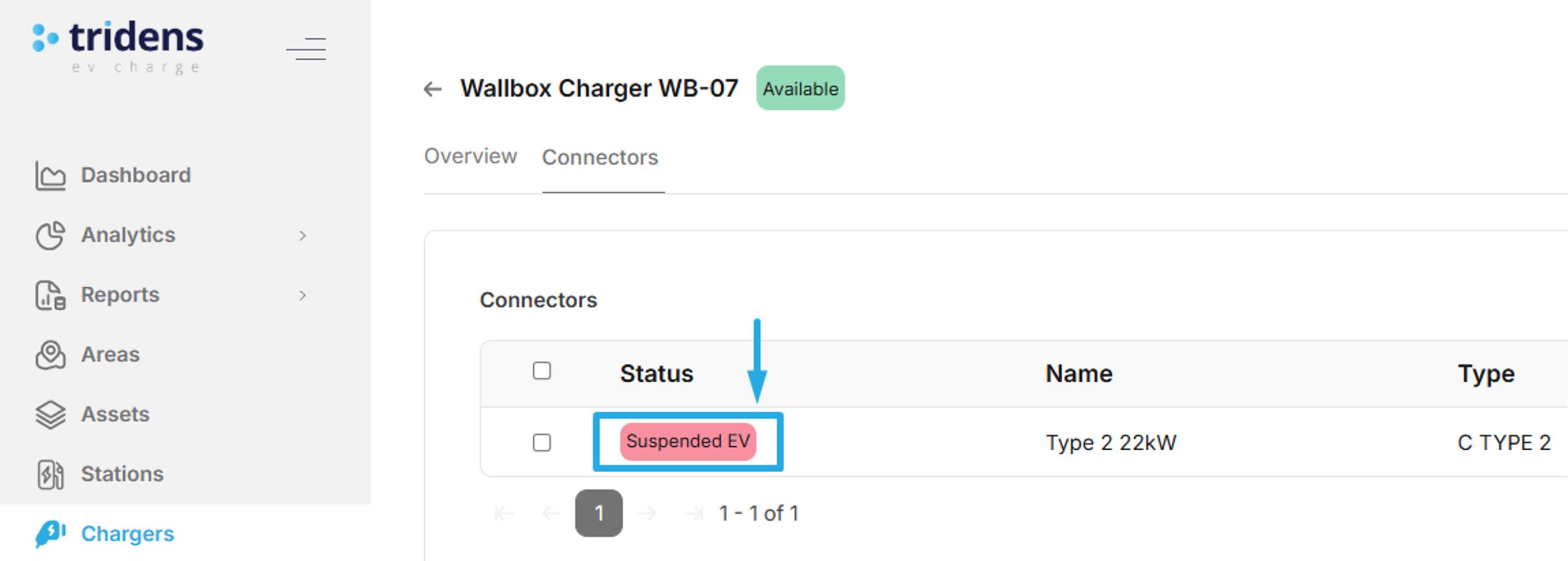
Figure 8: Connector has suspended status on Tridens web dashboard.

Figure 9: Tridens session contains parking time, due to suspension.
Table 6: Solution & preventive measures of scenario 6.
| Topic | Description |
|---|---|
| Investigate OCPP logs | Investigate OCPP communication of the charging station in Tridens EV Charge dashboard under Stations - View Logs - OCPP. Focus on the latest StatusNotification reports from the charger. Exact status reason can be found in additional info attributes. Suspended EV means that charger is offering energy, but vehicle is not taking it. Suspended EVSE means that charger is not offering energy. OCPP communication view: Stations - Logs - Logged OCPP Communication Session duration scopes (parking, charging, …): Sessions - Duration Scopes |
7. Rating failed
Customer’s session was charging successfully, but it ended up in rating-failed status. Failed rating of session can be a consequence of false plan-product catalogue configuration in Tridens Monetization, false customer’s subscription plan configuration in Tridens Monetization or internal error due to maintenance. Rating can be retried manually or by an automated job.
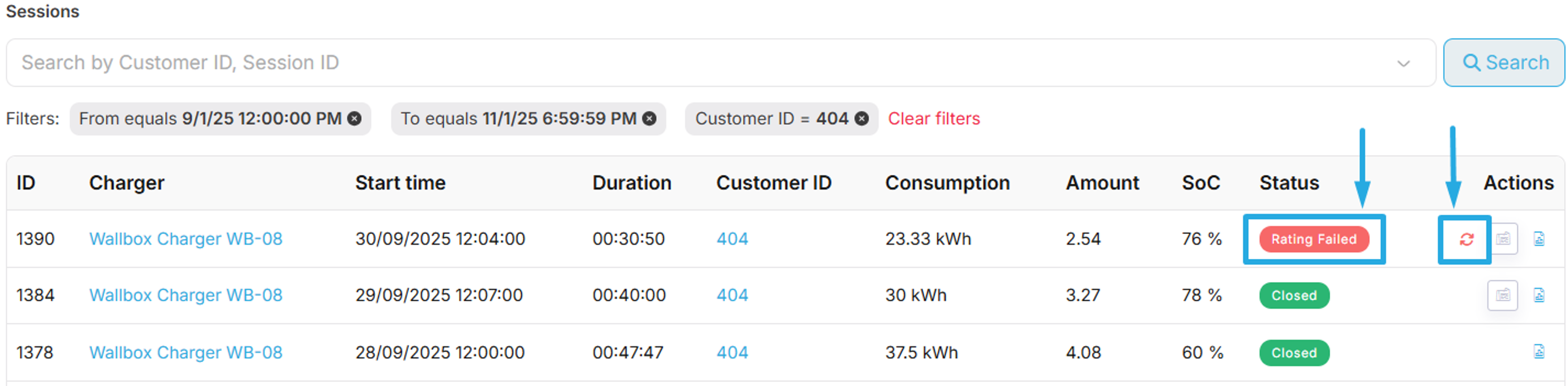
Figure 10: Tridens session with rating-failed status.
Table 7: Solution & preventive measures of scenario 7.
| Topic | Description |
|---|---|
| Manual retry rating | Attempt manual retry rating operation on session by using Tridens EV Charge web dashboard in Sessions - Actions and hit Retry rating. Sessions - Retry Rating |
| Automated retry rating | Automated retry rating operation is done by automated retry session rating job. Sessions - Retry Rating |
| Monetization catalogue configuration | Verify whether rate plan configuration is proper in Tridens Monetization. |
| Customer subscription plan configuration | Verify whether customer’s subscription plan configuration is proper in Tridens Monetization. |
8. Billing failed
Customer’s session was charging successfully, but it ended up in billing-failed status. Failed billing of session can be a consequence of false plan-product catalogue configuration in Tridens Monetization, false customer’s subscription plan configuration in Tridens Monetization or internal error due to maintenance. Rating can be retried manually or by an automated job.
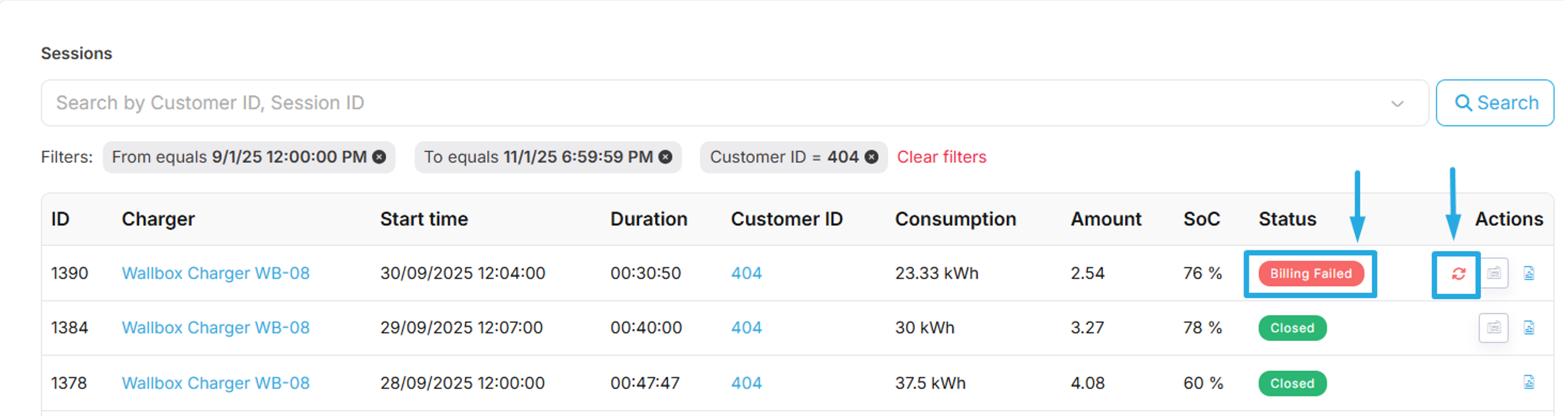
Figure 11: Tridens session with billing-failed status.
Table 8: Solution & preventive measures of scenario 8.
| Topic | Description |
|---|---|
| Manual retry billing | Attempt manual retry billing operation on session by using Tridens EV Charge web dashboard in Sessions - Actions and hit Retry billing. Sessions - Retry Billing |
| Automated retry billing | Automated retry billing operation is done by automated retry session billing job. Sessions - Retry Billing |
| Monetization catalogue configuration | Verify whether rate plan configuration is proper in Tridens Monetization. |
| Customer subscription plan configuration | Verify whether customer’s subscription plan configuration is proper in Tridens Monetization. |
9. Session did not start
Charging session has been requested to start and was prepared with ready status. Session then never proceeded to start and did not obtain the in-progress status. Eventually, the session becomes closed.
Such session state can be a consequence of non-proper configuration of connection timeout & session expiration settings or missing session event from the charging station.

Figure 12: Prepared session in ready status.

Figure 13: Non-started session has been closed.
Table 9: Solution & preventive measures of scenario 9.
| Topic | Description |
|---|---|
| Ready session expiration on Tridens | Session on the Tridens EV Charge server is considered as idle when not receiving event reports from the charging infrastructure after a certain configured time. Ready session expiration represents allowed inactivity period for a prepared ready charging session. When background job detects a ready session’s inactivity exceeding this time, it finalizes it (rating and closing). Adjust ready session expiration settings on Tridens by following instructions in Tridens EV Charge – Idle Session Settings. Align the expiration period with the Session connection timeout period. |
| Session connection timeout of station | Ensure to configure the session start connection timeout period on the charging station side. It covers the time available to start the session, since the acceptance of remote session start request or driver authorization. Adjust physical station’s configuration in Stations - Actions - Configuration - Core/General and adjust the Connection timeout, as instructed in Tridens EV Charge – Charging Session Integration – Session Start Timeout Align the timeout with Ready session expiration on Tridens web dashboard. |
| Station did not report session start event | Verify whether the charging station has reported start session event (OCPP’s StartTransaction or TransactionEventRequest). See OCPP communication logs: Stations - Logs - Logged OCPP Communication If event is missing, ensure using the latest firmware on the charging station, otherwise report an issue to the manufacturer. |
10. Obsolete session, charger stops responding
Charging session was charging and progressing, but at some point, the progress was not visible anymore on Tridens web dashboard and mobile application. Eventually, such session was detected as idle and switched from in-progress status to closed. Persisted energy may not reflect the value on the physical charger/vehicle.

Figure 14: Session stopped being tracked and eventually closed.
Table 10: Solution & preventive measures of scenario 10.
| Topic | Description |
|---|---|
| Meter values reporting | Ensure having session meter values reporting enabled. Enable session meter values reporting interval on Stations - Actions - Configuration - Meterings - Interval of 10-60 seconds. Enable session meter values measurands reporting in Stations - Actions - Configuration - Meterings - Measurands. Advised to use Energy.Active.Import.Register, Power.Active.Import and Current.Import. For more guidelines and instructions on configuring the meter values, refer to Tridens EV Charge – Charging Session Integration – Meter Values Reporting. |
| Ongoing session expiration on Tridens | Session on the Tridens EV Charge server is considered as idle when not receiving event reports from the charging infrastructure after a certain configured time. Ongoing session expiration represents allowed inactivity period for an ongoing in-progress charging session. When background job detects an in-progress session’s inactivity exceeding this time period, it finalizes the session (rating and closing). Adjust ongoing session expiration settings on Tridens by following instructions in Tridens EV Charge – Idle Session Settings. |
| Charging station’s network issues | Consider that charging station’s web network issues may impact this. In large network inactivity times, session may be detected as idle and closed by ongoing-session-expiration rules on Tridens. |
| Charging station’s firmware issue | Charging station may stopped operating properly due to firmware issue, full messaging queue, memory overflow or any similar issue. Ensure using the latest stable firmware on the charging station. |
| Charging station’s hardware issue | Charging station may stopped operating properly due to hardware issue: EV communication error, high temperature, over voltage, power meter failure, reader failure, ground failure or other. Check out OCPP communication logs to find any fault indicators (StatusNotification): Stations - Logs - Logged OCPP Communication |
11. Inadequate session
Recognize one of the following:
- Sessions shorter than 5 minutes.
- Sessions consumed less than 5 kWh of energy.
- Non-properly tracked session times: Charging times, parking times, fault times.
- No customer assigned on session.
- No monetary amount assigned on session.
Table 11: Solution & preventive measures of scenario 11.
| Topic | Description |
|---|---|
| Short session | See Session did not start and Obsolete session, charger stops responding. |
| Low energy consumption | See Session charging, but energy not progressing on Tridens and Faulted connector. |
| Session has non-proper times | See False time tracking. |
| Session has no customer assigned | See No customer assigned on session. |
| Session has no monetary amount | Verify whether rate plan configuration is proper in Tridens Monetization & whether customer’s subscription plan configuration is proper in Tridens Monetization. |


